
Build your AVA and Upload Products
Follow these steps to create and set up your AI Video Assistant (AVA), connect it with your products, and upload resources to build a powerful knowledge base.
Step 1: Create Your AI Video Assistant (AVA)
- Select AI Video Assistant from the toolbar in the Business Portal.
- Click on Create New Assistant.
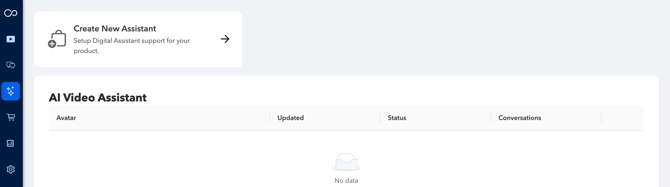
- Personalize your assistant by entering a distinctive name and providing a detailed description.
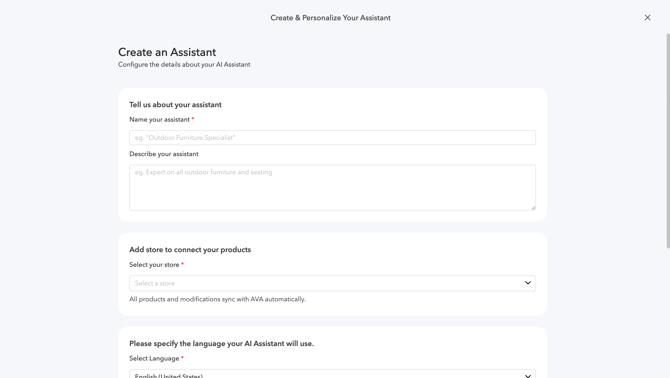
- Select your store and specify the products you want AVA to support. All products and updates will automatically sync with your assistant.
- Choose the language your AI Assistant will use to interact with shoppers.
- Upload a custom image, replacing the default avatar to give your assistant a uniquely personalized appearance.
- Click Create to confirm your selection.
Step 2: Knowledge
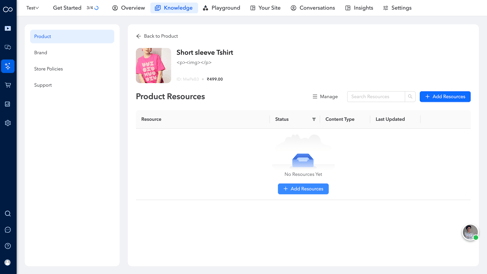
- Open the Knowledge tab (next to Overview).
- Select the Store you want to add products from.
- Click on the product you want to add and then click on + Add Resources to start adding resources to your products.
- Choose the resource type from the following:
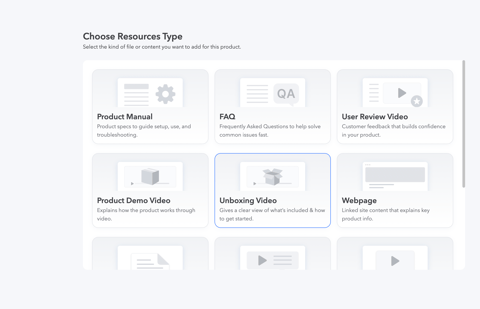
Resource Types
- Product Manual – Provide detailed setup instructions, usage guides, and troubleshooting steps.
Formats: PDF, TXT
Upload options: File upload or enter text/link directly - FAQ – Include answers to common questions and solutions for frequently encountered issues.
Formats: PDF, TXT - User Review Video – Add customer testimonial videos to build buyer confidence.
Formats: MP4 (up to 300MB), MOV, WMV, FLV, AVI, PNG, JPG, JPEG
Options:- Upload new content or select from your library
- Import short videos from your channel (previous interactions will not transfer)
- Customize the video title
- Choose to keep original audio or let AVA narrate
- Action: Click Add Video to save
- Product Demo Video – Showcase how your product works with a clear visual demonstration.
Format: MP4 - Unboxing Video – Highlight what’s inside the box and provide first-use instructions.
Format: MP4 - Webpage – Add direct links to informative product pages on your website.
Format: URL - General Text – Share product notes, tips, and best practices.
Format: TXT - UGC (User-Generated Content) Video – Incorporate authentic customer videos to provide credibility and context.
Format: MP4 - Other Video – Upload any additional video resources that don’t fit into the categories above.
Format: MP4 - Other Document – Attach technical specifications or other supporting files.
Format: PDF
Resource Management
- Use the search function to find specific resources.
- Select Publish Pending Resources to activate and publish pending resources.
- Click Manage to delete or change the status of any resources. Click Add Resources to add more resources to the product.
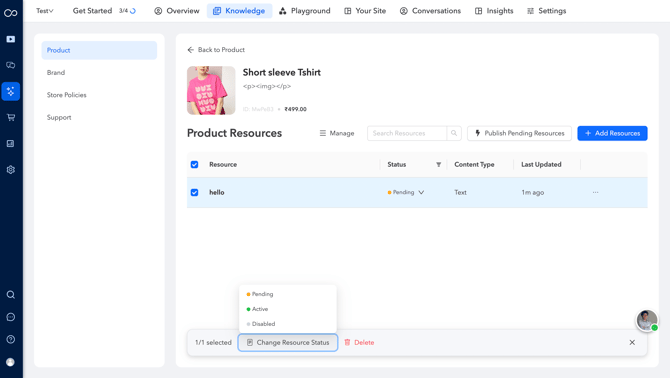
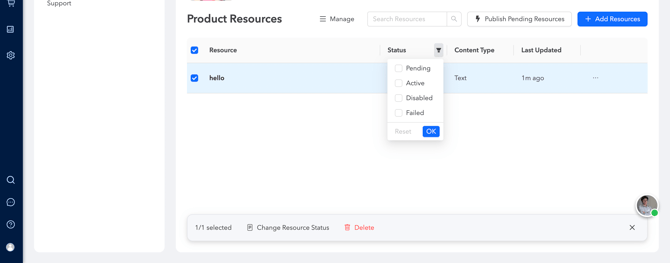
- Filter your resources by status using the filter icon—choose between pending, active, or disabled to manage visibility and workflow.
- View all product resources by clicking View All in the All Product Releases tab.

- To include all brand-related information such as contact support, store FAQs, shipping info, or return policy, click on the brand on the left side. This section contains resources not linked to any specific product.
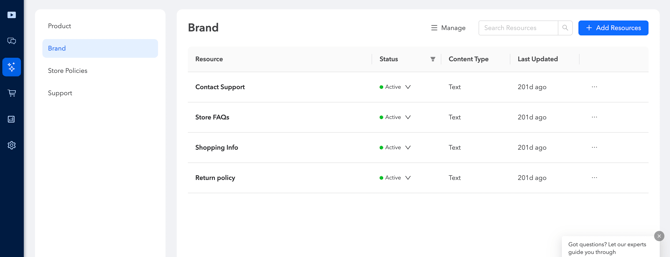
- You can also add store policies and support-related documents separately.
Playground
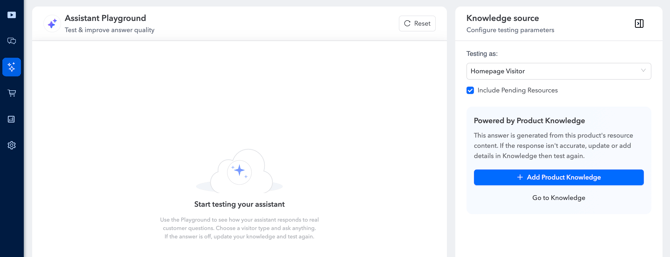
- Use the Playground to see how your assistant responds to real customer questions.
- Choose a visitor type and ask anything.
- If the answer is off, update your knowledge and test again.
- Update the knowledge base directly by clicking + Add Product Knowledge or go to Knowledge.
- Click Reset if you want to start over.
Embed AVA
You can integrate your AVA into your website from this section, which will enhance user engagement and improve customer support. Learn how to Embed Ava onto your website - link
Manage Conversations
You will be able to access and review all the conversation history to gain valuable insights and enhance the quality of user interactions. You also have an option to export the conversations.
For more detailed information, please refer to the guide on conversation history. - link
Insights
Ava insights
Configure Settings
Customize the look and feel of your assistant, and choose a voice to match your preferences for a personalized experience.
Appearance
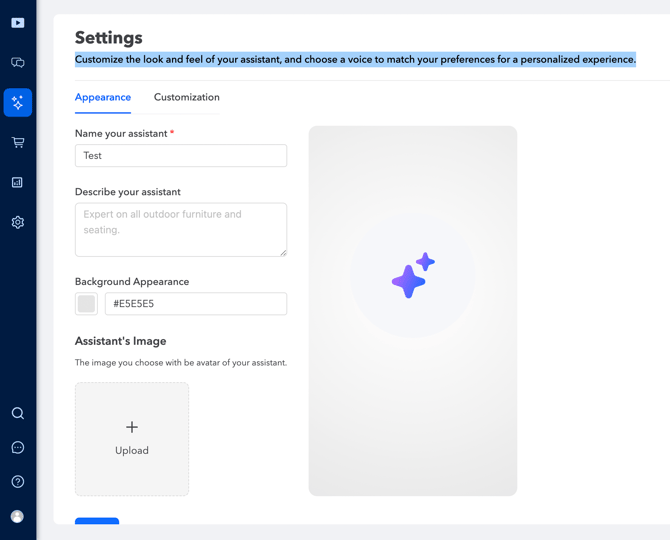
- Customize the look and feel of your assistant, and choose a voice for a personalized experience.
- Update the assistant’s name and description to reflect its role and character.
- Choose a solid background color for the assistant.
- Update your assistant's profile to reflect new roles, expertise, or branding as needed.
- Upload Assistant's Image – This image will replace the default avatar in the user interface.
- Click Save once done.
- Customize your assistant’s greetings, including a welcome message and a returning visitor message.
- Choose a personality profile—Friendly & Helpful, Minimalist & Direct, Inquisitive & Curious, Professional & Formal, or Empathetic & Supportive—to match your brand’s tone.
- In-Chat Disclaimers appear at the start of every session and inform users that chats may be monitored. Keep your disclaimer concise.
- Click Save when finished.
Preview and Publish
- Go back to the Overview tab and Preview your AVA by clicking the Preview option on the right side of the page.
- When ready, click Publish to make your AVA live for users.
- Access the options menu (three dots) to delete your assistant if needed.