
Before Publishing, we recommend testing AVA in the Preview option to see your results.
Embed AVA
- Select the AVA you want to embed and then go to your site
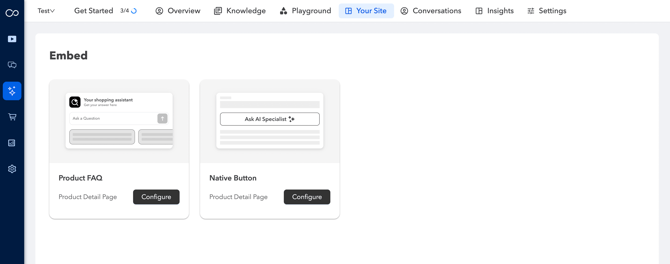
Product FAQ Display
-
Embed AVA as native, interactive content so visitors can chat and ask questions directly on your website.
-
Customize the FAQ widget by adding a title, subtitle, and enabling the AI icon.
-
Enable AI-Generated Questions
-
When enabled, AVA automatically generates personalized FAQ questions based on page content, product data, and each shopper’s on-site behavior, continuously optimizing the FAQ experience for every visitor. The messages you configure here will appear in the FAQ widget embedded on your site.
-
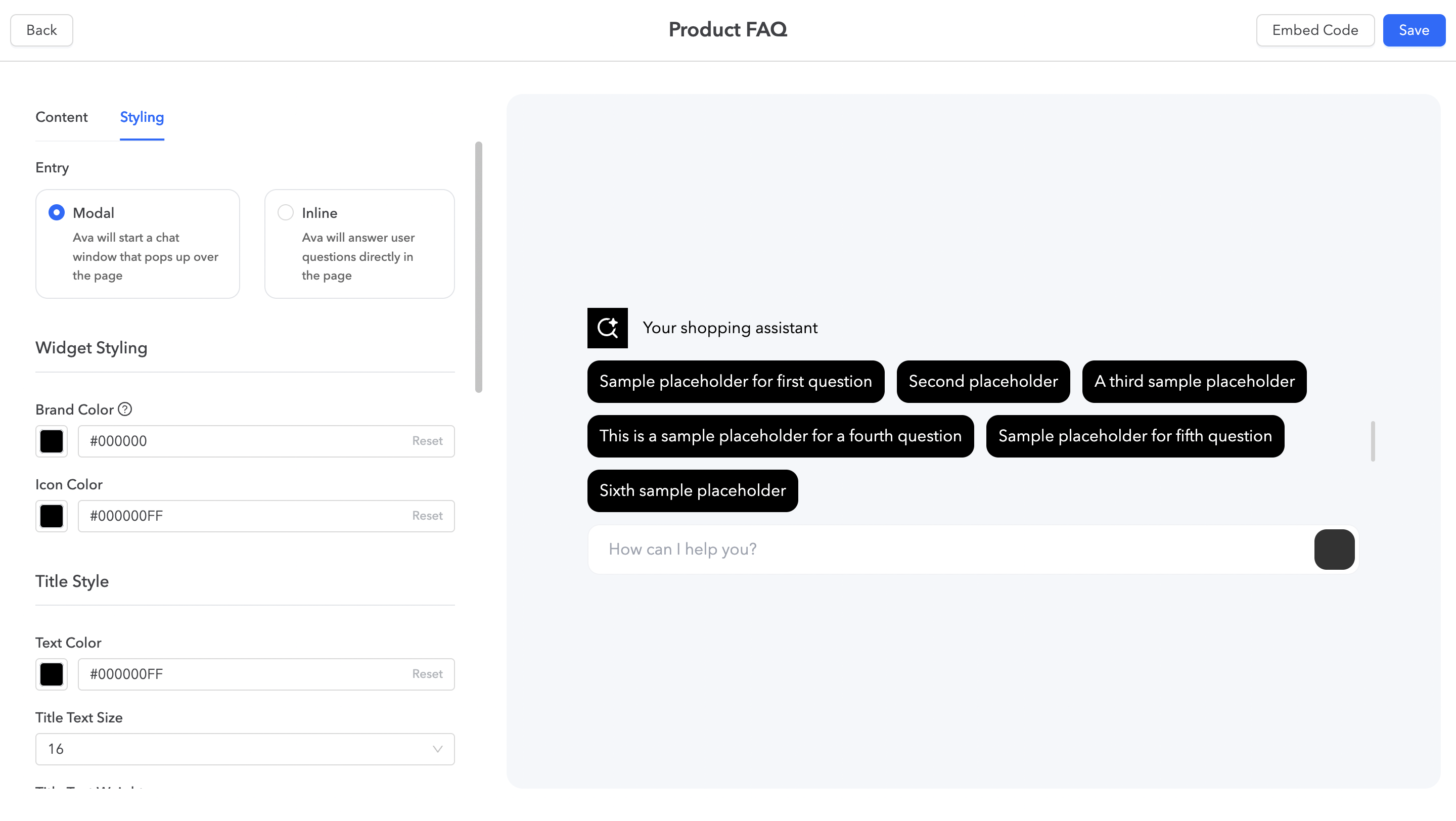
You can fully customize the FAQ presentation—edit the title and subtitle, toggle the icon, select your primary brand color, and adjust font size and corner radius to align with your site’s visual design.
Questions
-
Enable AI-Generated Questions
-
The messages you configure here will appear in the FAQ widget embedded on your website. When this feature is enabled, AVA will automatically generate personalized questions based on page content, product data, and each shopper’s on-site behavior, continuously optimizing the FAQ experience for every visitor.
-
If AI is disabled, the default questions you define will be shown on all relevant pages.

- Add up to six FAQ questions (each up to 60 characters) to provide quick answers and navigation support in the embedded widget.
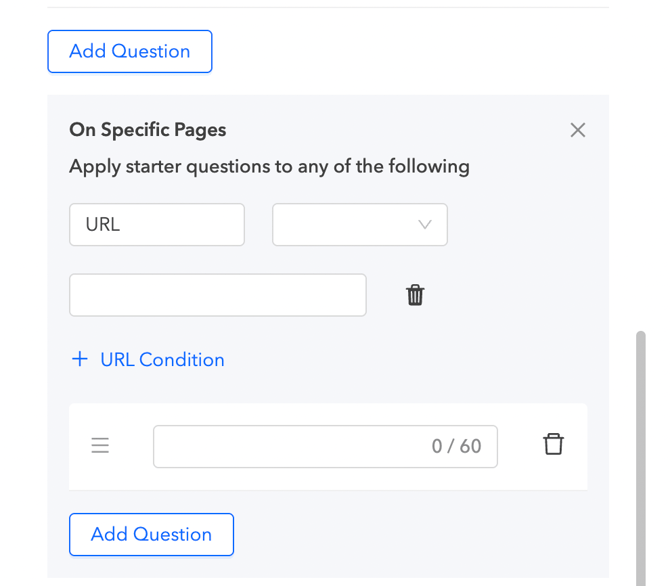
- Additional Question Set - You can establish URL conditions to apply starter questions to specific URLs. To do this, create a new Question Set with designated URL conditions that dictate where these questions will be displayed on various webpages. Simply click on the +Question Set button to add more.
-
You can also customize the input placeholder text.
-
The FAQ questions will appear as soon as a user first opens AVA.
-
Styling
Entry point
Modal
Ava will start a chat window that pops up over the page
Inline
Ava will answer user questions directly in the page
From this section, you can customize widget, title, and button styling, along with overall layout and alignment.
-
Click Save when you’re finished, then select Embed Code to copy the code for use on your website.
NativeButton
- Button - You may adjust the following for the CTA button:
-
Widget Title – Add a title for your widget.
-
Show Digital Assistant – Toggle on/off to display the assistant in the widget.
-
Widget Size – Choose between Auto or Custom. Selecting Custom lets you manually set the widget’s dimensions.
-
Button Label – Define the text displayed on the CTA button.
-
Primary Button Color – Set the main color of the button.
-
Button Border Color – Choose the color of the button border.
-
Button Font Color – Select the color for the button text.
-
Use AI Icon – Toggle on/off to display an AI icon on the button.
-
Widget Background – Toggle on to customize background settings:
-
Edit background color
-
Adjust border thickness
-
Set corner radius
-
Choose border color
-
-